Why the platform messages matter
NinjaTrader reports what it is doing in several places. The Log tab in the Control Center lists events from the platform. The NinjaScript Output window shows messages from scripts, including strategies, and any errors from compiling them. Both can tell you something important about a session, and both are easy to miss if you only look at the chart.
Most traders see a message after something has already gone wrong. The aim of this guide is to show you how to read the messages calmly, in the right order, so you can explain what happened and decide what to check next.
The Log tab: platform events
The Log tab records events from the platform itself: connections, disconnections, account updates, and messages about starting or stopping parts of the system. It is the first place to look when a data feed drops or an account does not update as expected.
Check the Log tab at the start of each session, and again after any restart or update. A clean start is easy to confirm when you know what it looked like. If the Log tab shows a connection warning before the session opens, note it before you assume the setup is ready.
The NinjaScript Output window: script messages
The Output window shows messages from NinjaScript code. A strategy can print messages to it when it enables, when it waits, or when something unexpected happens. A compile error is also reported there, with the file name and the line number.
Open the Output window before you enable a strategy, so you see messages from the first moment. Leave it open during replay practice and during sim sessions. Messages that scroll past quickly are easy to miss, so note any repeated message in your journal rather than trying to remember it.
Reading a message in four steps
Use the same four steps for every message, so reading them becomes a habit rather than a guess.
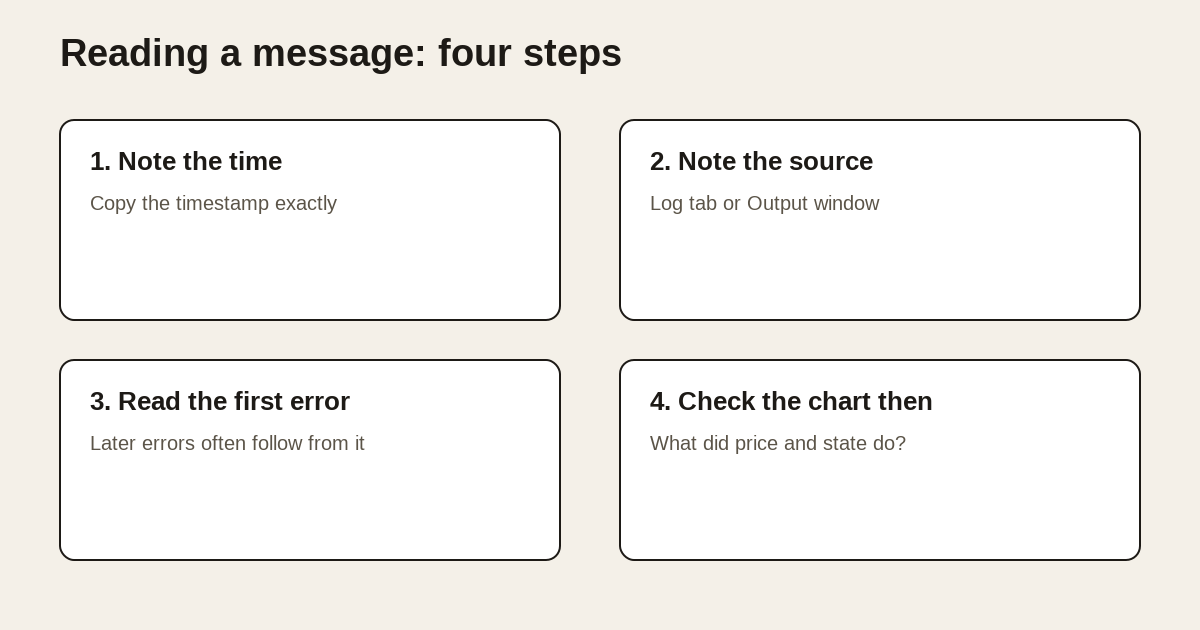
Step 1: note the time
Copy the timestamp exactly as it appears. A time without a date, a time zone or a session is hard to match later. Write it in your journal in the same format every time, with the time zone noted once at the top of the entry.
Step 2: note the source
Was the message in the Log tab or in the Output window? A connection event and a script error can look similar, but they point to different causes. A connection problem usually needs a check of the data feed or network. A script error usually needs a look at the file and its compile output.
Step 3: read the first error
When several errors appear together, read the first one first. Later errors are often a knock-on effect of the first, so fixing the first can clear several others. Note the file name, the line number and the exact text. Do not change the code or settings until you have written the message down.
Step 4: check the chart at that time
Find the moment on the chart that matches the timestamp. What did price do? Did the strategy state change? Was there an order at that time? Matching the message to the chart is what turns a line of text into an explanation you can check.
Common messages and what to check first
Messages come in a few common kinds. Recognising the kind tells you where to look first. These are general categories, not a full list, and the exact wording depends on your NinjaTrader build.
- Connection messages: check the data feed status, the network and the power. Note how long the gap lasted.
- Account messages: check that the sim or live account is the one you selected, and that the position matches what the strategy expects.
- Compile errors: open the file named in the message and read the line it points to. Check that the file is complete and unchanged.
- Repeated messages: count them and note the first and last time they appeared. A repeated message often means a loop or a wait that is not clearing.
- Messages after an update: compare with the journal entry from before the update, and note the version.
Errors that scroll past quickly
On a busy session, messages can appear and disappear within seconds. Two habits help. First, keep the Output window open on a second screen so it is visible without switching. Second, clear the window at the start of each session and save its contents at the end, so the session has a complete record.
Some traders copy the Output window into a text file at the end of each session. That is a useful habit, because it keeps the raw messages with the journal entry. Store the file with the same date as the entry, so the two can be matched later.
Turning messages into journal facts
The journal records facts, so each message should become one short line: time, source, message, and what you did about it. If you did nothing, write that. A message with no recorded action is still a fact, and it is one that the next review may need.
Avoid writing an interpretation as the fact. "The feed dropped at 10:14 for 90 seconds" is a fact. "The feed is unreliable" is a verdict that needs more data. The trading journal guide sets out the other blocks of the entry.
When to stop and get help
Stop the setup and seek help if a message repeats after a restart, if an account shows a position you do not expect, or if you cannot tell whether an order was placed. Do not keep trying random changes. Write down what you have checked, what you changed and what you saw, and share that record with whoever is helping you.
Disable the strategy first if you are unsure, then investigate. Stopping is always a safe first step, and it gives you time to read the messages properly.
Practising the routine on replay
The safest place to learn to read messages is on replay, where a message can be reproduced by running the same day again. Use the Market Replay guide to set up the practice day, and read the Output window and the Log tab throughout the run, not only at the end.
Limits of this guide
This guide explains how to read platform messages. It does not explain how any strategy trades, and it does not describe any strategy settings or results. Message wording changes between NinjaTrader builds, so use this guide for the steps, and check the exact text in your version.
Setting up the windows before the session
Arrange the Log tab and the Output window before the session opens, so they are ready when you need them. A window that you have to find during a fast move is a window you may not check. Put them where you can see them without switching away from the chart, or use a second screen for the Output window if your setup allows it.
Confirm the windows are showing the right content before you enable anything. An Output window that still holds yesterday's messages can mislead you about what started this session. Clear it, or note the line where today begins, so each session starts with a clean view.
Understanding the timestamps
Timestamps are the key that links a message to the chart. Before you rely on them, check which time zone the platform writes in, and whether it matches your chart. A message timestamped one hour off the chart is usually a time zone difference, not a fault in the strategy.
Write the time zone once at the top of each session entry in your journal. When you copy a message, copy its timestamp exactly, and convert it only in your notes, never in the copied text. That keeps the original record intact.
Messages that show a state, not an error
Not every message is a problem. Some messages simply show the state of the strategy or the connection: waiting, enabled, connected, or synchronised. These are useful for the record, even when nothing is wrong. Note them the same way you note an error, so you can see the normal pattern and recognise an unusual one.
A session with no state messages at all can also be worth a note. It may mean the strategy never reached the point where it reports its state, which is a fact to check against the chart.
Repeated messages and loops
A message that repeats many times in a short period deserves attention. It can mean the strategy is retrying an action, waiting for a condition that is not clearing, or reporting the same problem again and again. Count the repeats, note the first and last time, and check the chart and the account at those moments.
Do not treat a repeated message as harmless because it does not stop the strategy. Repetition often means the setup is in a state you did not intend, and the journal is where that state should be recorded.
Messages during a restart
A restart produces its own set of messages, and they are often the most useful ones in the whole log. Read them from the first line after the restart. Check that the connections come back in the order you expect, that the account shows the right position, and that the strategy enables only when you intended it to.
Record the restart time and reason in the journal, and copy the first messages after the restart into the entry. A restart that was not planned is one of the most common reasons a session looks different from the one before.
Working out which message matters
When you have many messages, sort them before you read them. Put connection messages in one group, script messages in another and compile errors in a third. Then read each group in time order. This makes it much easier to see whether two messages are related.
If two messages occur at the same moment, note both. The link between them is often the cause you are looking for, and it is easy to lose if you record only one.
Copying messages without losing detail
When you copy a message into your journal, keep the full text. Shortened messages lose the file name, the line number or the instrument, and those details are often what makes the message useful later. Paste the message as it appears, then add your own short comment on a new line.
If a message is very long, keep the first line in the journal and save the full text to a file with the same date as the entry. Link the file in the journal by name, so you can find it again.
A worked example of reading a message
Suppose the Output window shows a compile error for a file during a session start. You note the time, and that the source is the Output window. You read the first error, which names a file and a line. You check the chart at the time of the message, which shows the price moving normally, and that the strategy never changed state.
You then open the file named in the message and check it is complete and unchanged. You write the error, the file, the line and your check in the journal. You do not change the code during the session. You disable the strategy, and you review the file on a replay day before you try again. Every step is a fact you can point to later.
Keeping the journal consistent with the log
The journal and the log should agree. Every message you consider important should appear in the journal with its time. Every journal entry that mentions an event should be traceable to a message or a chart observation. If a journal line has no source, add one, or remove the line.
A consistent record is easy to review and hard to dispute, including by yourself a month later. That consistency is the reason the Log tab and the Output window are worth reading carefully.
Quick reference
Arrange both windows before the session. Check the time zone and write it down. Read messages in four steps: time, source, first error, then the chart. Group messages before you read them. Copy the full text, not a summary. Record restarts, repeats and state messages. Keep the journal and the log in agreement. Stop and disable the strategy if you are unsure what a message means.
Why a clear log habit pays off
The first time a message makes sense in a calm review, it is worth more than any amount of reading during a fast move. A consistent habit of recording the time, the source and the first error builds a record that you can trust later. When something unusual happens a month from now, that record is the difference between a guess and an explanation.
The habit is simple, but it needs to be repeated. Start with the start-of-session check, read the messages during the session at natural pauses, and finish with the copy and the journal entry. Each part takes a few minutes, and together they keep the setup understandable.
Keeping a short reference card
A short reference card beside the setup helps the habit stick. Write the four reading steps on it, the list of common message types, and the first three things to check when a connection message appears. Keep the card short enough to read in ten seconds, because a long card is one you will not use during a session.